How to Build Applications through Natural Language
Tier0 enables you to build applications simply by talking to an LLM in natural language, and manage them in one place.
- Log in to Tier0, and select App > Projects.
A starter project is available for you to experience the application building process.
-
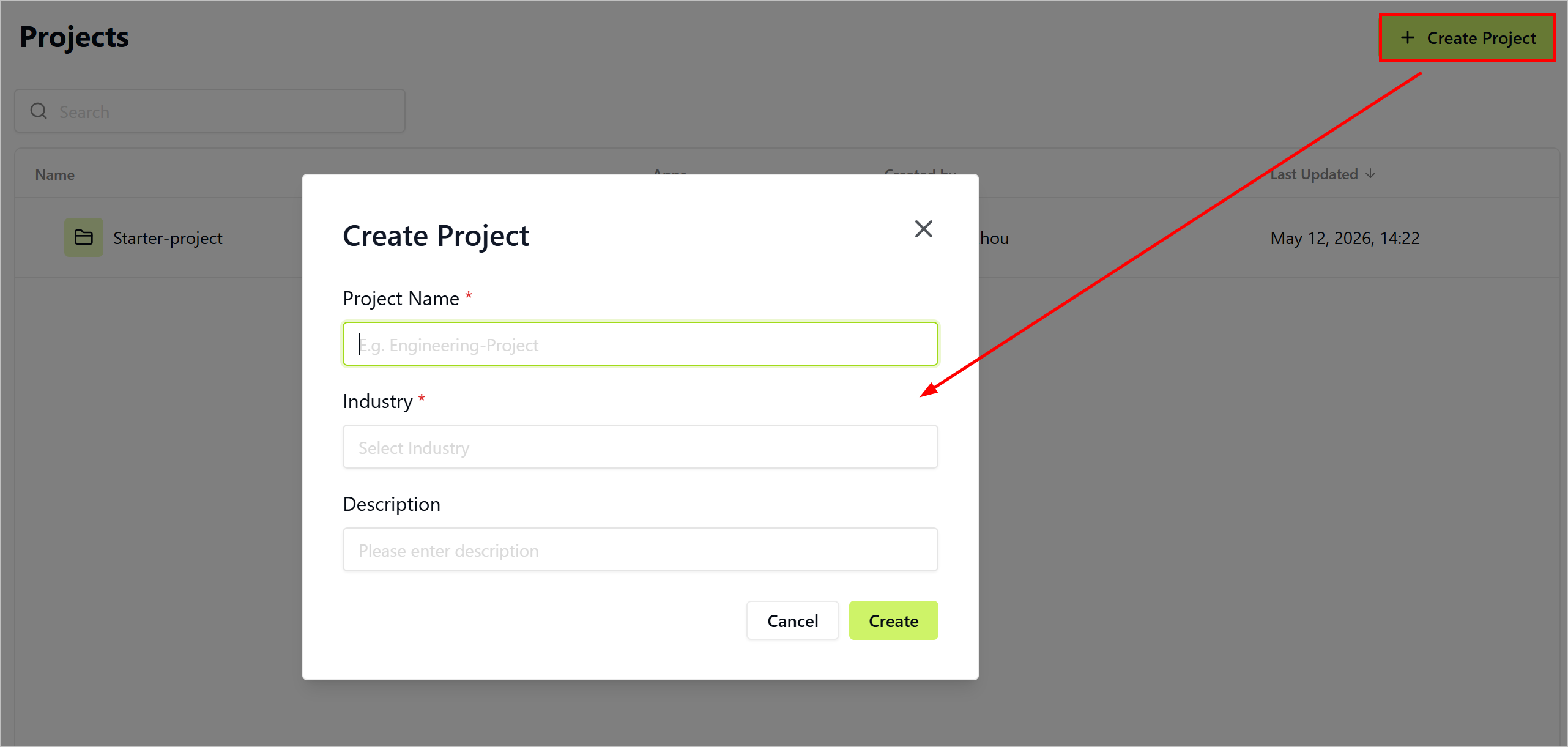
Click Create Project, enter the project name and description, select an industry and click Create.
-
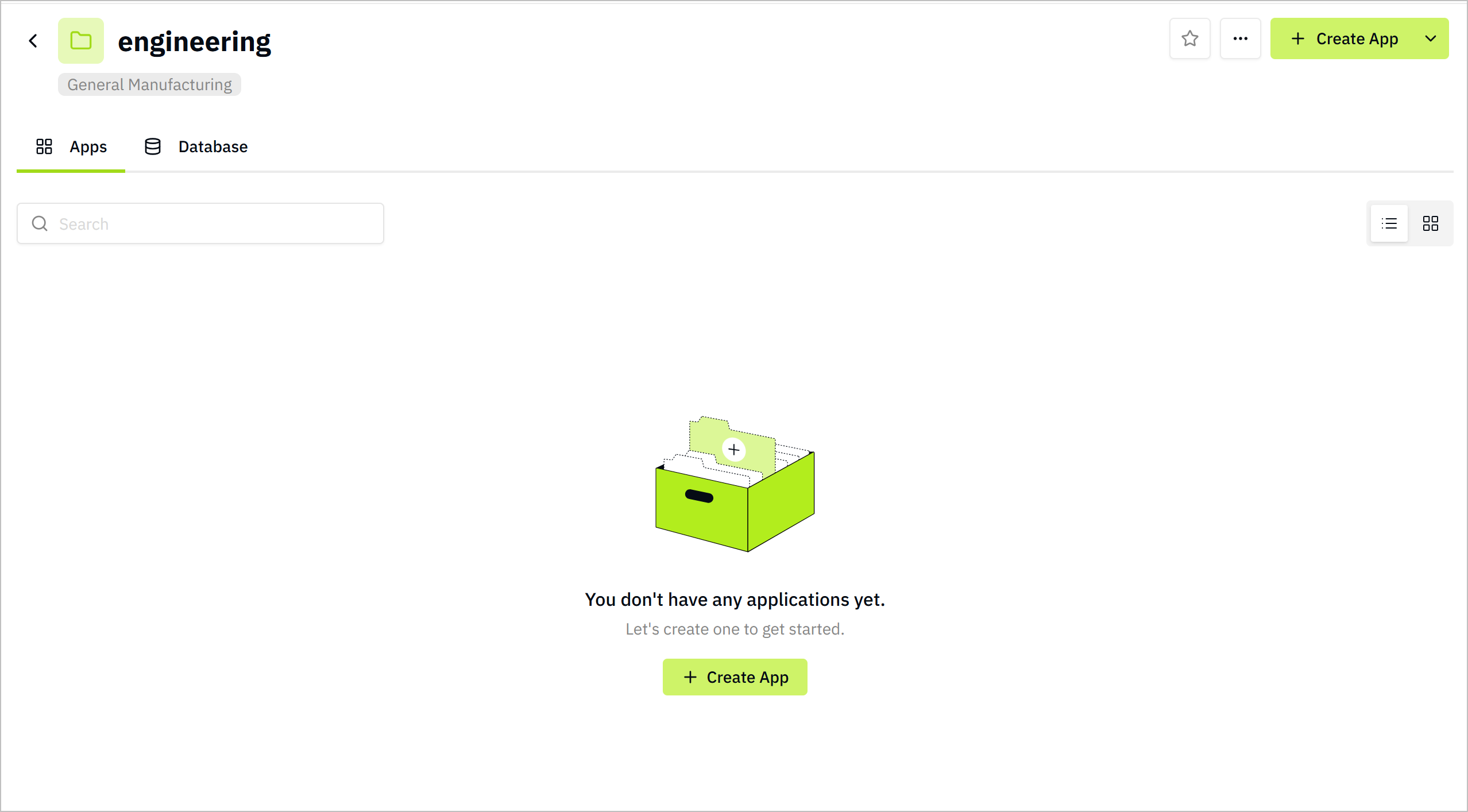
Open the project, click Create App, and you will be redirected to the app building page.
-
Define the application, and start building it.
-
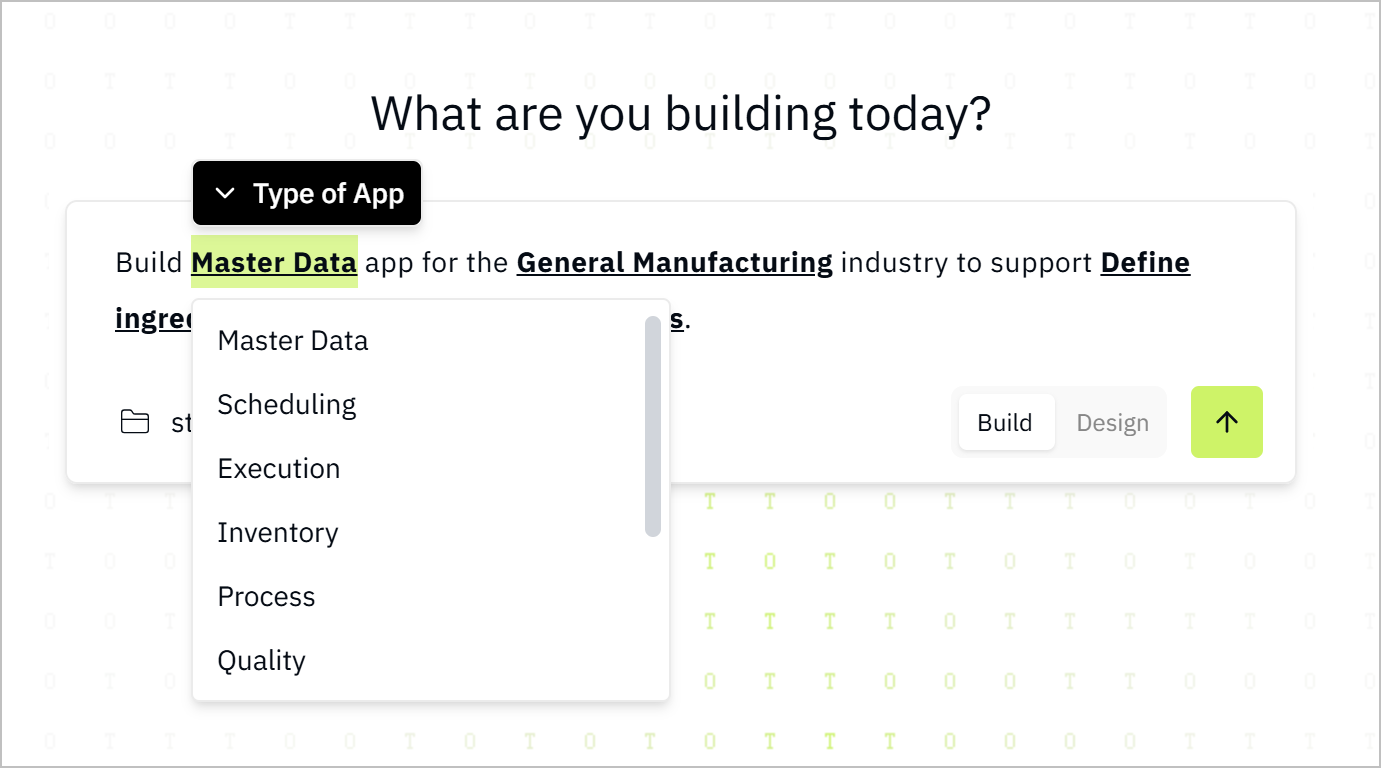
Click Type of App, select the type you want from the drop-down list.
-
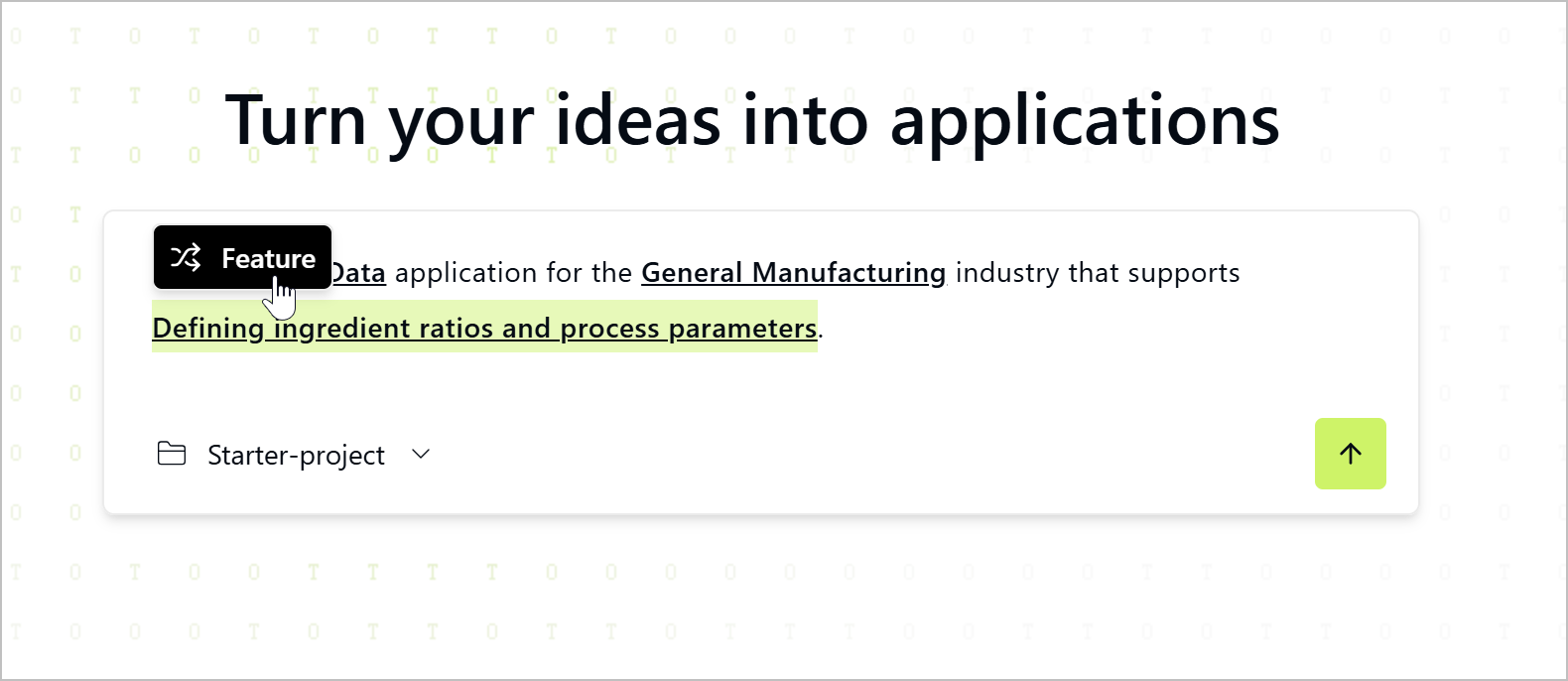
Click Feature to switch between all features, select the one you want.
-
Click
 .
.
-
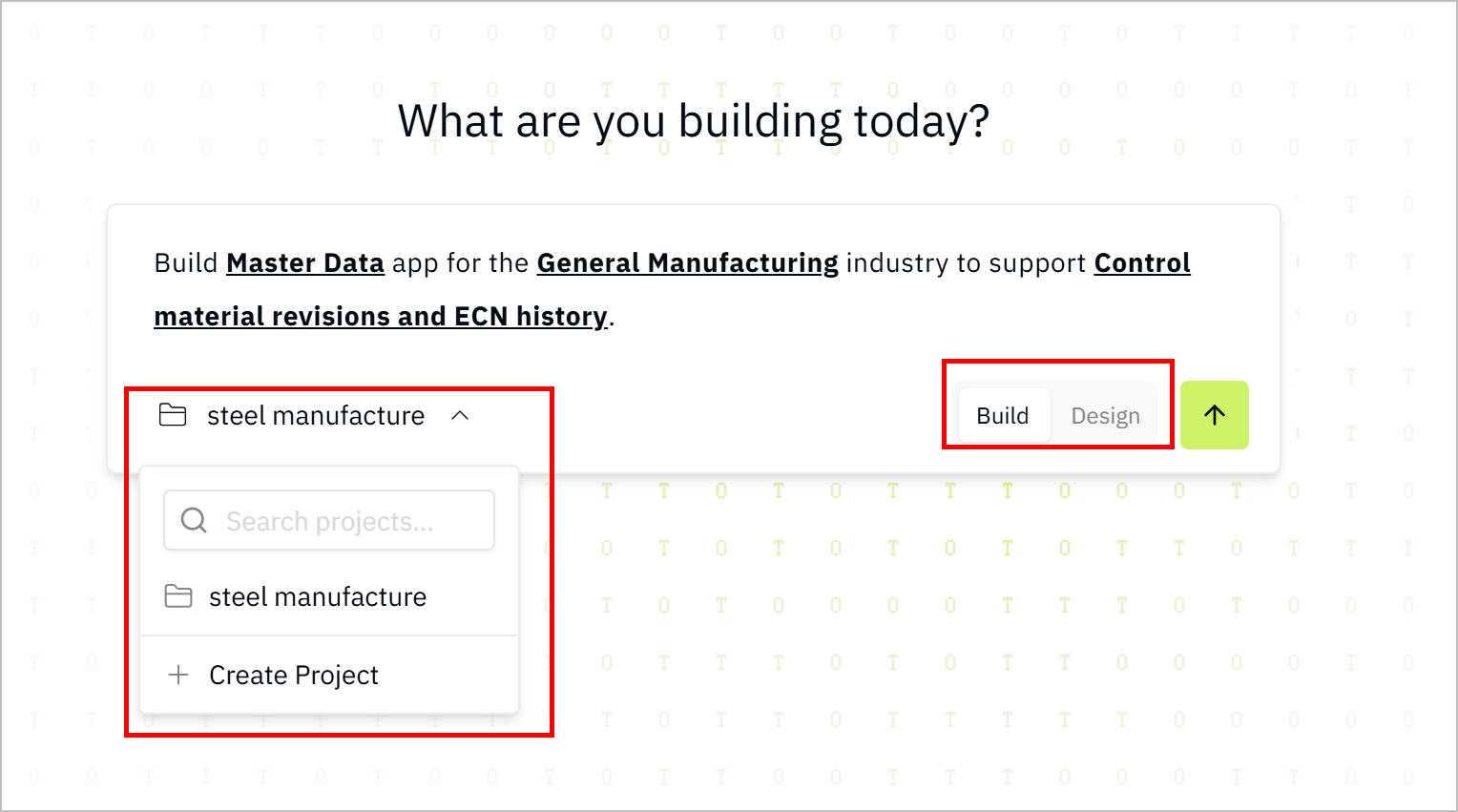
- Click the project name at the lower-left corner of the dialog window to switch between projects, or create new projects.
- Click Build at the lower-right corner to switch the building mode between Build and Design.
- Build: Data in the application is connected to the Tier0 database.
- Design: Data in the application is stored in LocalStorage of the browser, which is for testing and design preview.
-
Do follow-up configurations of the application during initial building, so it fits your needs better.
-
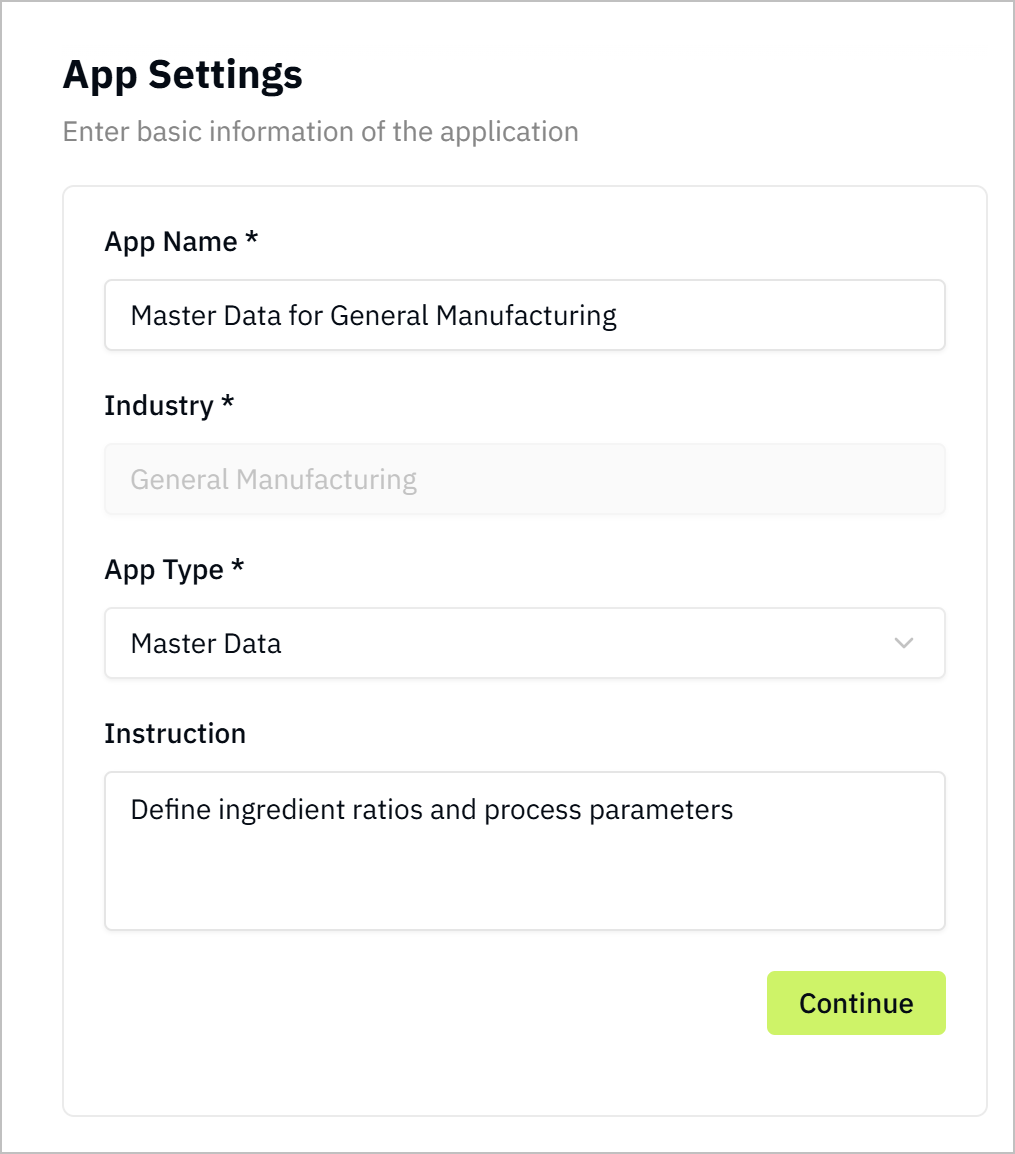
Confirm the basic application settings, and click Continue.
-
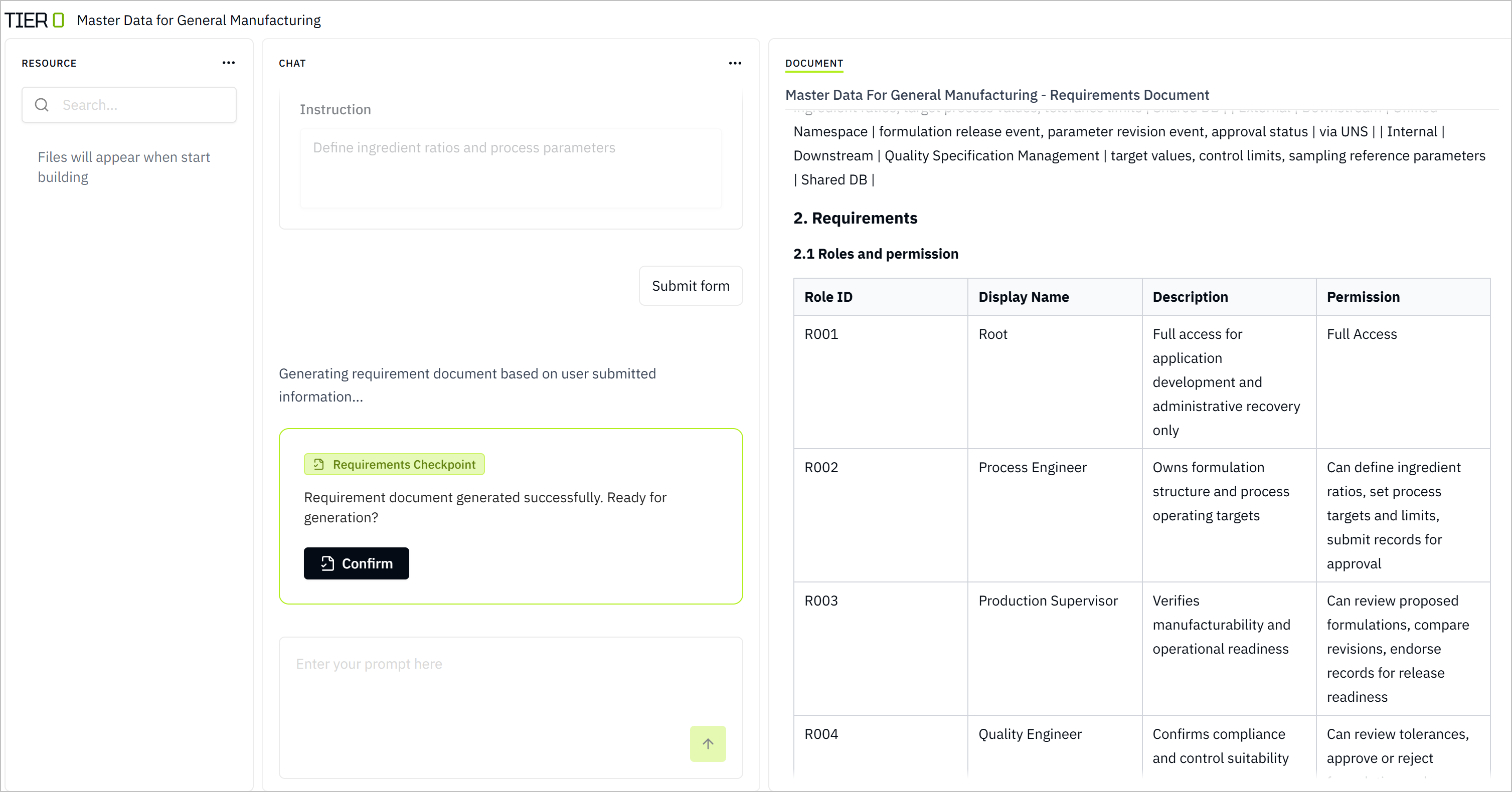
Check the generated requirement document, including the application structure, roles and permissions, data models, UI design and more.
-
Click Confirm to start building the application.
-
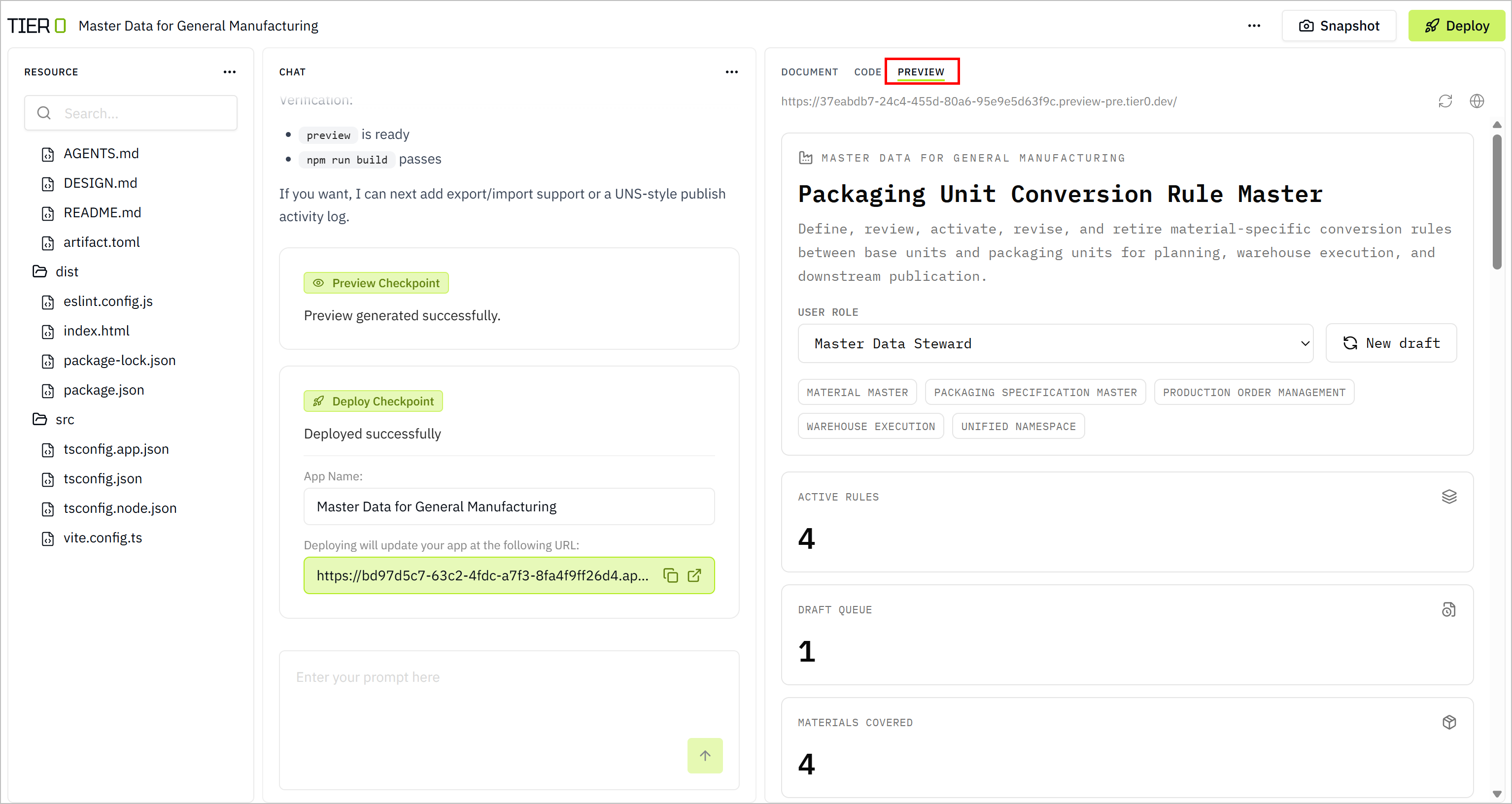
Once the application is built, check the preview of the application, and click Deploy Now on the dialog.
-
You can always change the application configurations by talking to the LLM while building.
- Fine-tune your application by talking to the LLM after the initial build, and click Deploy at the upper-right corner to complete building the application.
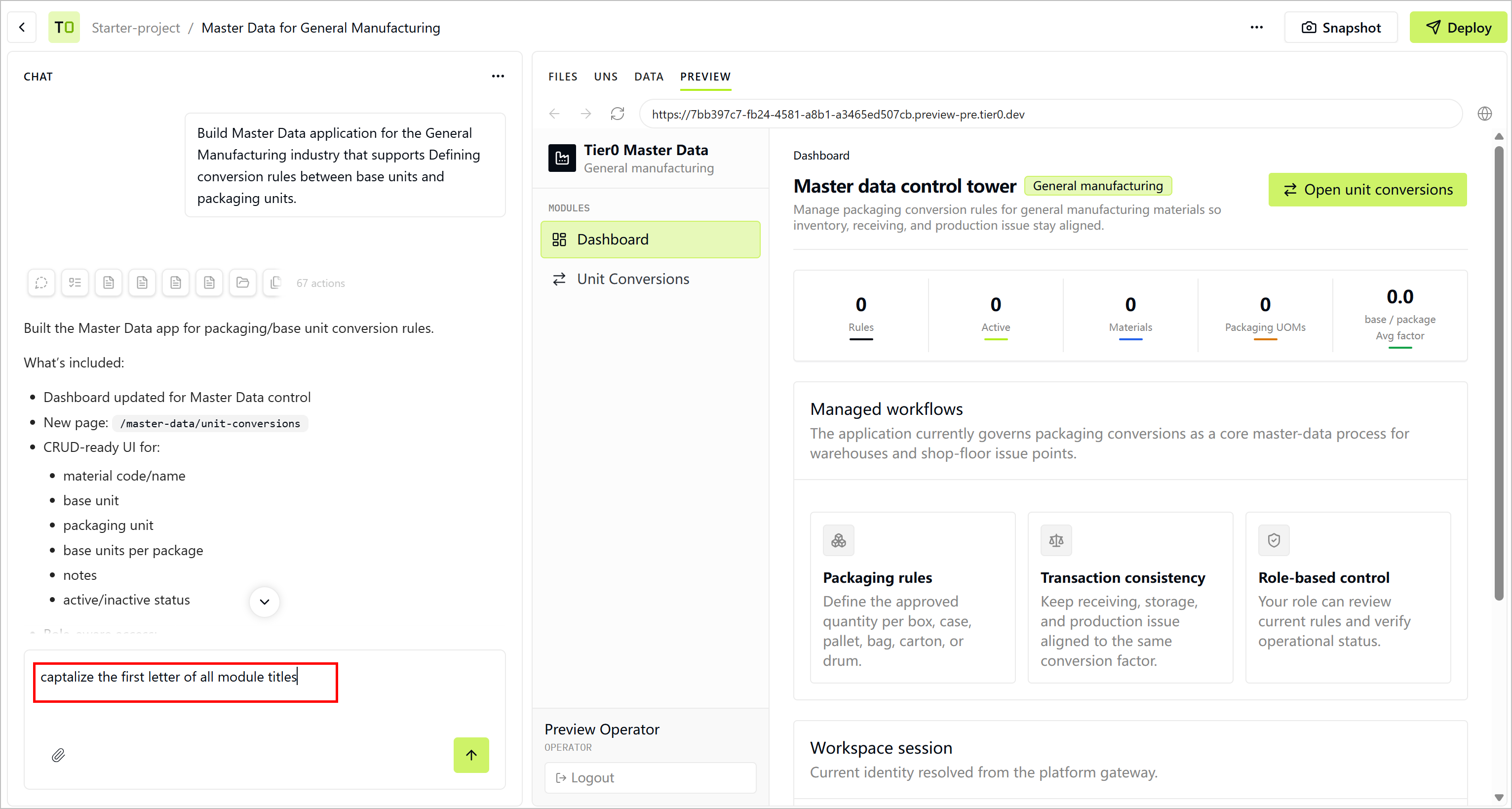
- Click
 to download the installation package of the application.
 - Click Snapshot to create a snapshot of the application, which can be used to restore the application to a previous state when needed.
- Go to Projects, click the application you just built.
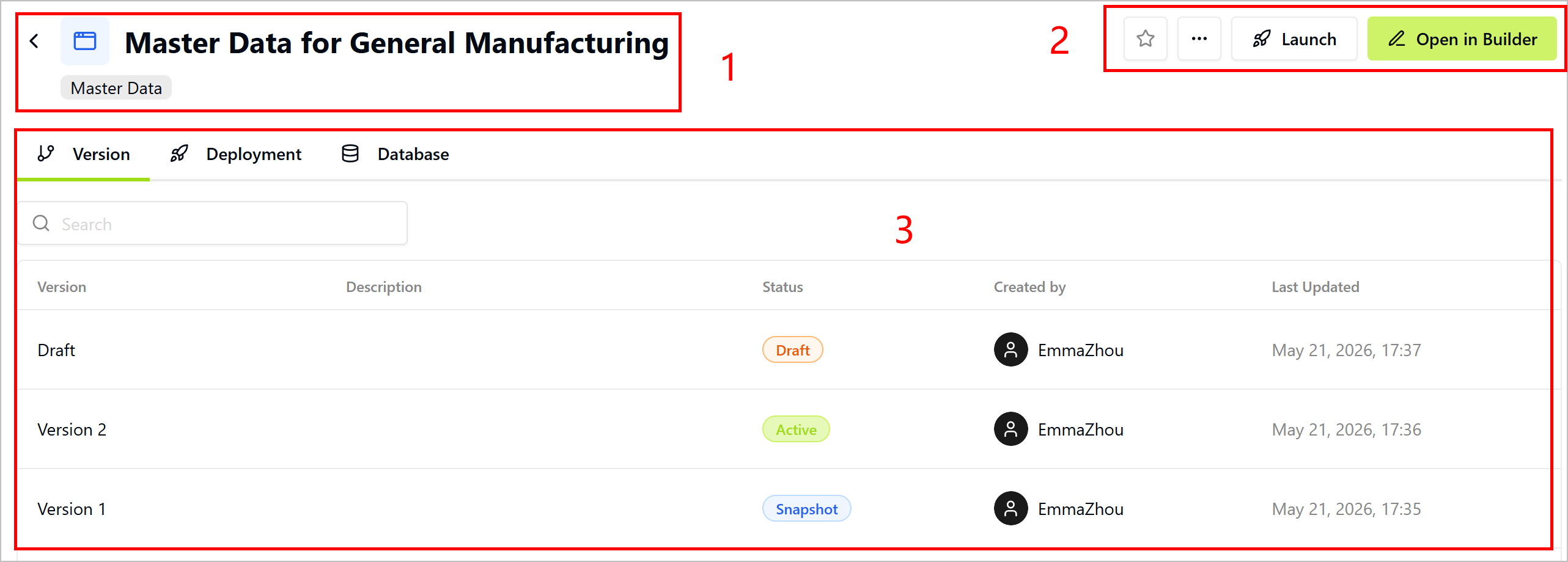
| No. | Item | Module | Description |
|---|---|---|---|
| 1 | Application Information | Application namespace, type and feature. | |
| 2 | Operations |  | Add the application to Favorites. |
| Share the application link or archive it for future use. | ||
| Launch | Launch the application to Launchpad for workspace member access. | ||
| Edit App | Go back to the application building interface, and talk to the LLM to edit it. | ||
| 3 | Application Details | Version | Application version list. |
| Deployment | Deployment details of each version of the application. | ||
| Database | Database tables generated during application building in Build mode. | ||
- Click Launch, and you can see the application you just deployed.
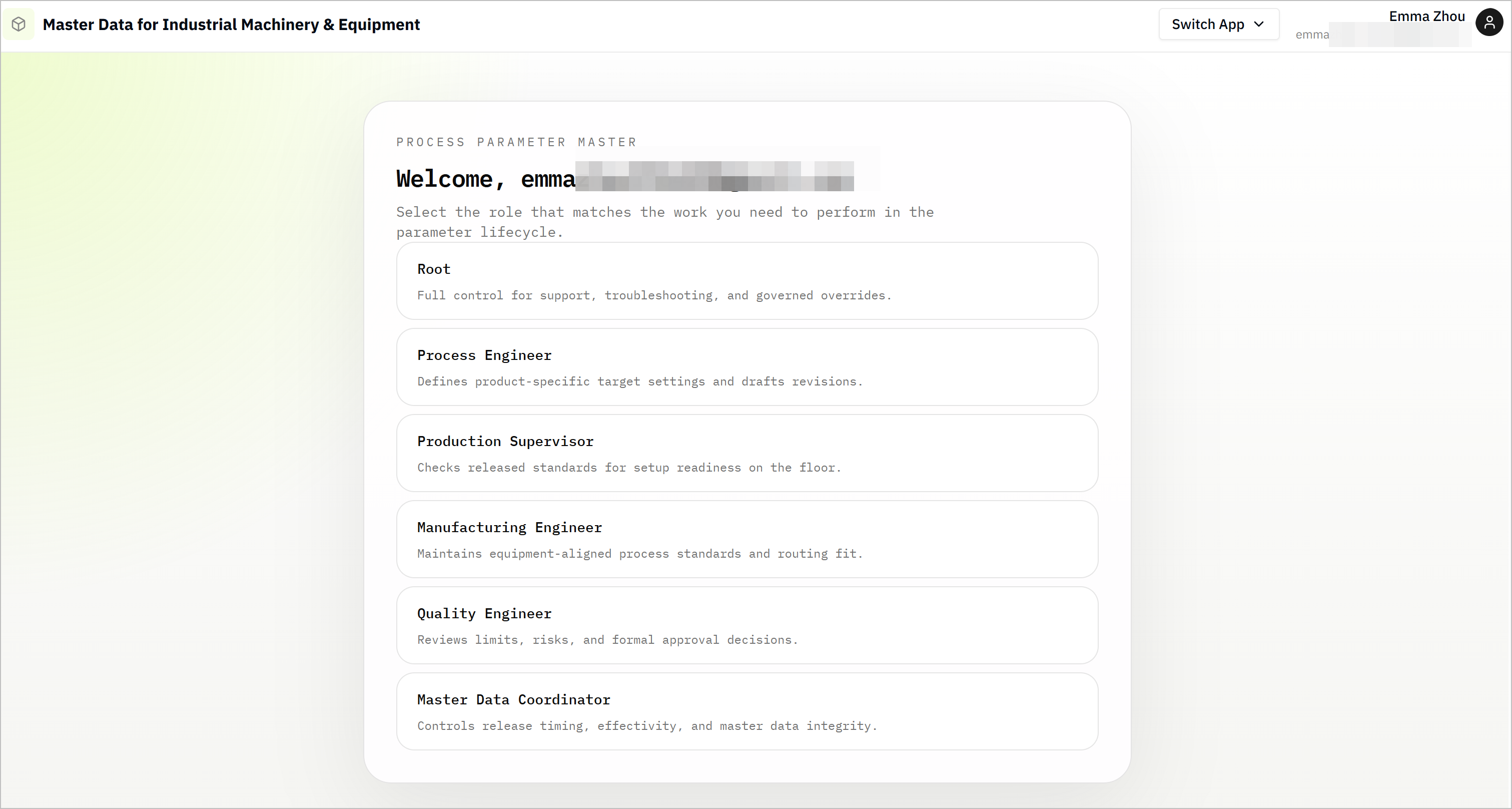
Click Switch App, you can select all launched applications to view.
- Go to Launchpad, click the application you launched and use it.
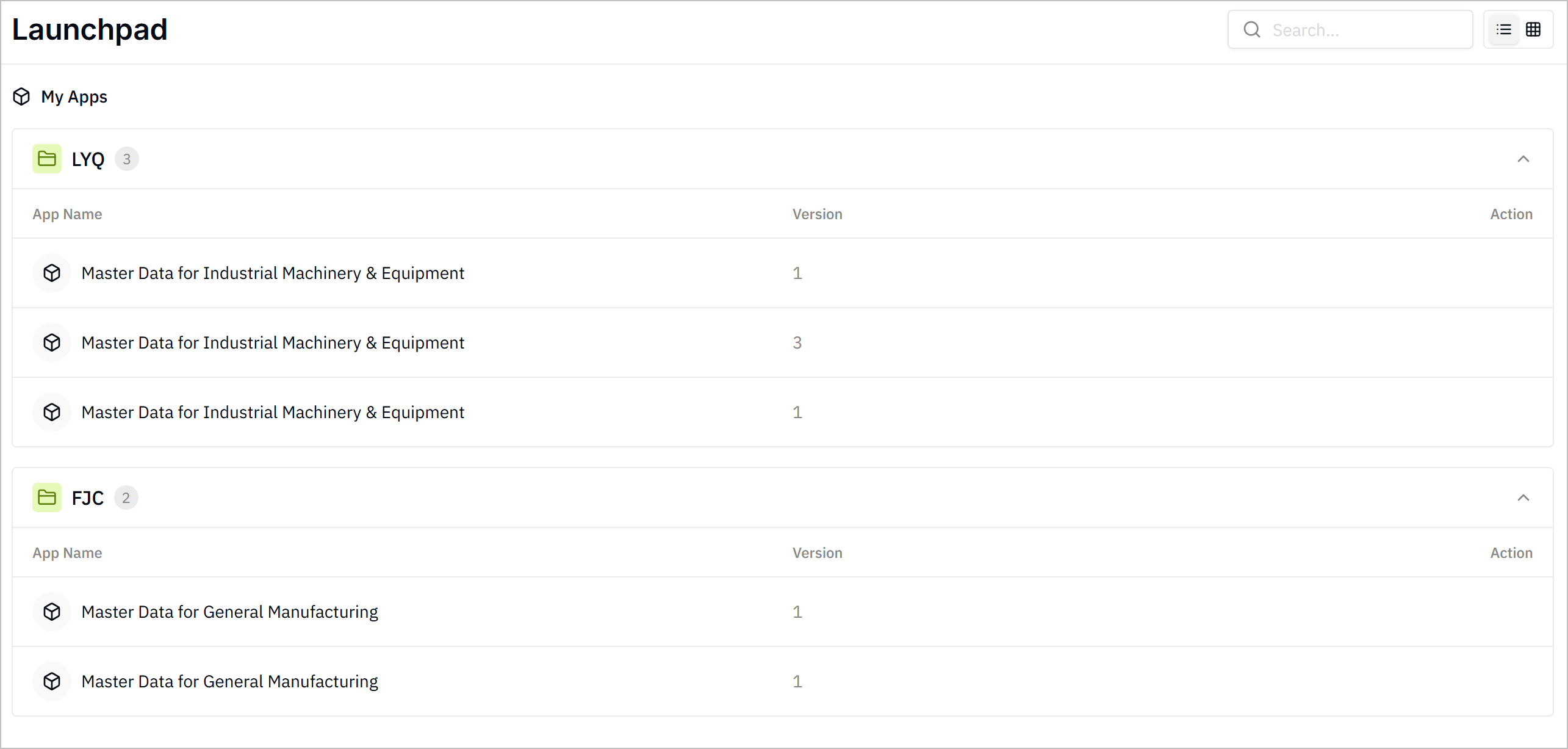
Click Switch App at the upper-right corner to view and use other launched applications.